> ## Documentation Index
> Fetch the complete documentation index at: https://docs.haloxlabs.ai/llms.txt
> Use this file to discover all available pages before exploring further.
# Keyword Status: SEO and GEO opportunities by list and network
> HaloX Keyword Status shows search visibility and AI citation state by keyword so teams can choose this week's content priorities.
 ## What is this feature?
**Keyword Status** is a HaloX Pro sidebar feature. It is an operating surface, not a reporting-only screen for deciding the next action.
## What is this feature?
**Keyword Status** is a HaloX Pro sidebar feature. It is an operating surface, not a reporting-only screen for deciding the next action.
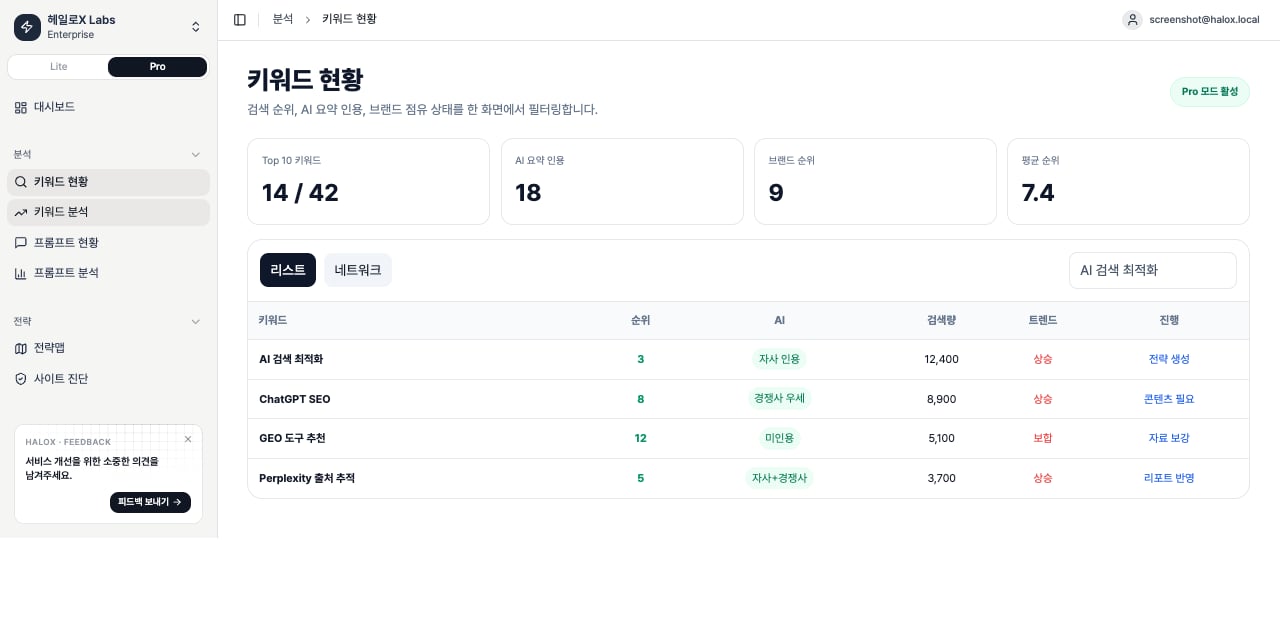 *The Pro-active list tab shows rank, AI summary citation, volume, trend, and next-work status together.*
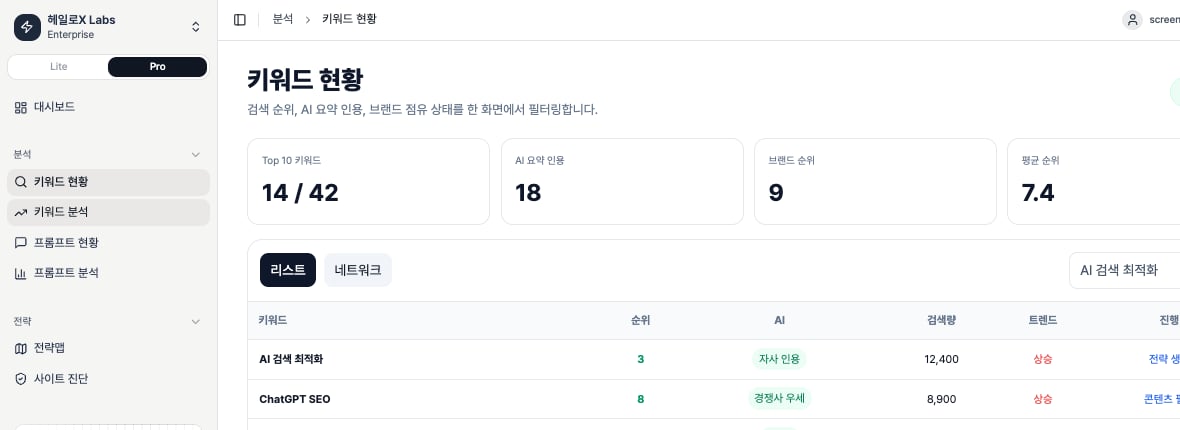 *The KPI cards establish whether the keyword portfolio is growing, where tracking effort is concentrated, and how SEO/GEO signals are moving.*
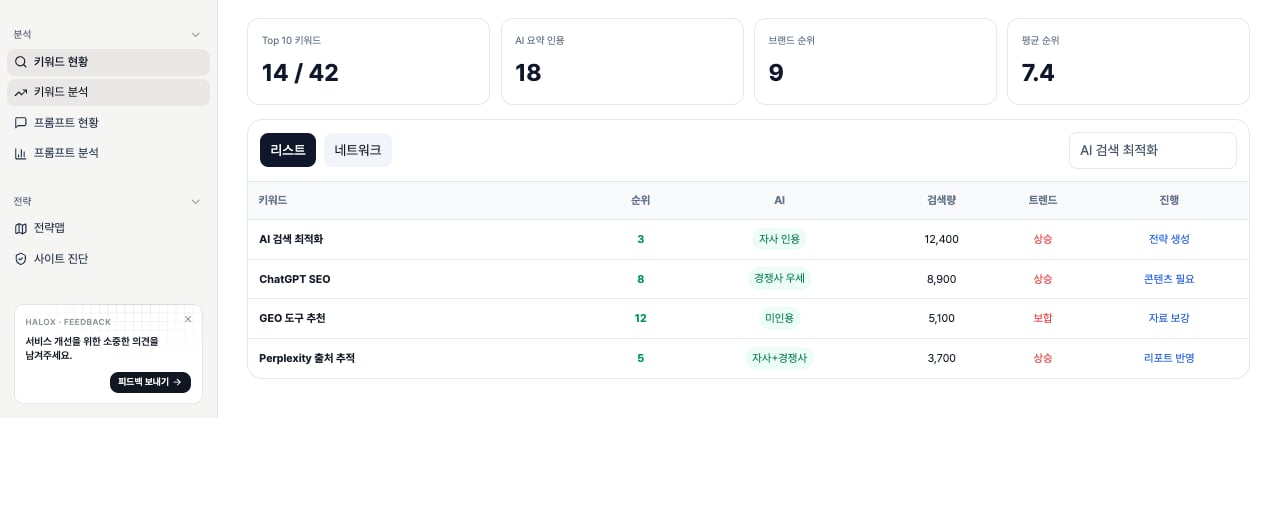 *The table turns each keyword into a decision: content brief, Strategy Map handoff, or report evidence.*
## How should you read the KPI cards?
The top cards summarize the entire keyword list. First check whether the brand appears in search results and AI answers, then narrow the competitor-leading keywords.
| KPI | What it means | Basis | Example reading |
| --------------- | -------------------------------------------------------------------------------------- | -------------------------------------------------------------------------------------------------------------------------------------------------------------------------------- | --------------------------------------------------------------------------------------------------------------------------------------- |
| Top 10 Keywords | Number of tracked keywords where the brand domain appears within Google top 10 results | Latest Google SERP analysis where the brand domain's best detected rank is 10 or lower | `19 / 100` means 19 of 100 tracked keywords are in first-page range; the rest need SEO visibility work or may not have enough data yet. |
| AIO Citation | Citation state for keywords where AI Overview is detected | Latest SERP analysis of AI citation results. Green means brand cited, red means competitor cited, amber means both, and gray means AI Overview exists but neither side is cited. | A large red segment means AI answers exist, but competitors are being used as sources first. |
| Brand Position | Search ownership state across the tracked keyword set | Compares the best rank of the brand domain and competitor domains in organic results | A large competitor segment means the first review should focus on SERP ownership and competitor domains before changing content copy. |
| Avg Position | Average brand rank across keywords that have a detected brand rank | Keywords without rank are excluded from the average; ranked keywords use their best detected rank | Avg position 7 means the ranked subset averages position 7. It does not mean every tracked keyword ranks at position 7. |
## What do the table metrics mean?
| Column | On-screen value | Meaning | How to interpret it |
| -------- | ---------------------------------------------- | --------------------------------------------------------------------------- | ------------------------------------------------------------------------------------------------------------------------------------------------------------------------------------------------------------------- |
| Rank | `#6`, `#10`, `-` | Best detected brand or competitor position for the selected search engine | In Google mode, a blue badge means brand rank. In Naver mode, a green badge means brand rank. Red means competitor best rank. `-` means the snapshot has no matching brand or competitor rank, or no analysis data. |
| AI | Bot icon or `-` | AI Overview or AI-answer citation state | Blue bot means brand cited. Red bot means competitor cited. Gray bot means AI Overview exists but no brand or competitor citation was detected. `-` means AI Overview was not detected. |
| Volume | `70`, `49.5K`, `< 10` | Monthly search-demand estimate for the keyword | Values come from Google Ads-style search volume. Missing or very low demand appears as `< 10`. Low volume can still matter for branded or conversion questions. |
| Trend | Mini line chart or `-` | Recent movement in search demand | A rising line usually points to growing demand. A falling line usually points to shrinking or seasonal demand. `-` appears when trend data is insufficient. |
| PAA | Blue question-count badge | Number of People Also Ask questions collected from Google SERP | A higher number means more FAQ, comparison, and how-to question candidates for content expansion. |
| Related | Purple link-count badge | Number of related searches or adjacent keyword candidates | A higher number suggests the keyword may need a cluster or series, not a single article. Open the badge to review addable tracking candidates. |
| TTR | `LOW`, `MEDIUM`, `HIGH` with a judgment window | Content recheck cadence | Based on SERP publication dates and topic freshness. `HIGH` means a shorter review cycle, while `LOW` means the topic can be checked less often. |
| Progress | Status chip or `—` | Content production, publishing, and judgment state connected to the keyword | Before publishing, it is an execution candidate. After publishing, approaching judgment windows become monitoring candidates. `—` means no content progress is connected yet. |
## Example decisions
| Situation | Interpretation | Next action |
| ------------------------------------------------------ | ----------------------------------------------------------------------------------- | ----------------------------------------------------------------------------------------- |
| Rank is top 10, but AI is `-` or competitor-cited | The brand is visible in search but not strong enough as an AI answer source | Use PAA and related questions to add FAQ sections, evidence statements, and source links. |
| Volume is low, but PAA and related counts are high | The keyword may be more valuable as a question cluster than as one high-volume term | Open the Network tab, group related questions, and create a content brief. |
| Competitor rank and competitor AI citation both appear | Competitors are ahead in both search results and AI answer sources | Filter competitor-leading keywords and prioritize them in Strategy Map. |
| TTR is `Fast`, but Progress is `-` | The topic changes quickly, but no content work is connected yet | Send it to Content Factory for a fast response article or update task. |
## Key tabs and subfeatures
Narrow work by filters, status chips, search, locale, rank, AIO, and freshness.
Read keyword relationships and plan by clusters, not isolated terms.
*The table turns each keyword into a decision: content brief, Strategy Map handoff, or report evidence.*
## How should you read the KPI cards?
The top cards summarize the entire keyword list. First check whether the brand appears in search results and AI answers, then narrow the competitor-leading keywords.
| KPI | What it means | Basis | Example reading |
| --------------- | -------------------------------------------------------------------------------------- | -------------------------------------------------------------------------------------------------------------------------------------------------------------------------------- | --------------------------------------------------------------------------------------------------------------------------------------- |
| Top 10 Keywords | Number of tracked keywords where the brand domain appears within Google top 10 results | Latest Google SERP analysis where the brand domain's best detected rank is 10 or lower | `19 / 100` means 19 of 100 tracked keywords are in first-page range; the rest need SEO visibility work or may not have enough data yet. |
| AIO Citation | Citation state for keywords where AI Overview is detected | Latest SERP analysis of AI citation results. Green means brand cited, red means competitor cited, amber means both, and gray means AI Overview exists but neither side is cited. | A large red segment means AI answers exist, but competitors are being used as sources first. |
| Brand Position | Search ownership state across the tracked keyword set | Compares the best rank of the brand domain and competitor domains in organic results | A large competitor segment means the first review should focus on SERP ownership and competitor domains before changing content copy. |
| Avg Position | Average brand rank across keywords that have a detected brand rank | Keywords without rank are excluded from the average; ranked keywords use their best detected rank | Avg position 7 means the ranked subset averages position 7. It does not mean every tracked keyword ranks at position 7. |
## What do the table metrics mean?
| Column | On-screen value | Meaning | How to interpret it |
| -------- | ---------------------------------------------- | --------------------------------------------------------------------------- | ------------------------------------------------------------------------------------------------------------------------------------------------------------------------------------------------------------------- |
| Rank | `#6`, `#10`, `-` | Best detected brand or competitor position for the selected search engine | In Google mode, a blue badge means brand rank. In Naver mode, a green badge means brand rank. Red means competitor best rank. `-` means the snapshot has no matching brand or competitor rank, or no analysis data. |
| AI | Bot icon or `-` | AI Overview or AI-answer citation state | Blue bot means brand cited. Red bot means competitor cited. Gray bot means AI Overview exists but no brand or competitor citation was detected. `-` means AI Overview was not detected. |
| Volume | `70`, `49.5K`, `< 10` | Monthly search-demand estimate for the keyword | Values come from Google Ads-style search volume. Missing or very low demand appears as `< 10`. Low volume can still matter for branded or conversion questions. |
| Trend | Mini line chart or `-` | Recent movement in search demand | A rising line usually points to growing demand. A falling line usually points to shrinking or seasonal demand. `-` appears when trend data is insufficient. |
| PAA | Blue question-count badge | Number of People Also Ask questions collected from Google SERP | A higher number means more FAQ, comparison, and how-to question candidates for content expansion. |
| Related | Purple link-count badge | Number of related searches or adjacent keyword candidates | A higher number suggests the keyword may need a cluster or series, not a single article. Open the badge to review addable tracking candidates. |
| TTR | `LOW`, `MEDIUM`, `HIGH` with a judgment window | Content recheck cadence | Based on SERP publication dates and topic freshness. `HIGH` means a shorter review cycle, while `LOW` means the topic can be checked less often. |
| Progress | Status chip or `—` | Content production, publishing, and judgment state connected to the keyword | Before publishing, it is an execution candidate. After publishing, approaching judgment windows become monitoring candidates. `—` means no content progress is connected yet. |
## Example decisions
| Situation | Interpretation | Next action |
| ------------------------------------------------------ | ----------------------------------------------------------------------------------- | ----------------------------------------------------------------------------------------- |
| Rank is top 10, but AI is `-` or competitor-cited | The brand is visible in search but not strong enough as an AI answer source | Use PAA and related questions to add FAQ sections, evidence statements, and source links. |
| Volume is low, but PAA and related counts are high | The keyword may be more valuable as a question cluster than as one high-volume term | Open the Network tab, group related questions, and create a content brief. |
| Competitor rank and competitor AI citation both appear | Competitors are ahead in both search results and AI answer sources | Filter competitor-leading keywords and prioritize them in Strategy Map. |
| TTR is `Fast`, but Progress is `-` | The topic changes quickly, but no content work is connected yet | Send it to Content Factory for a fast response article or update task. |
## Key tabs and subfeatures
Narrow work by filters, status chips, search, locale, rank, AIO, and freshness.
Read keyword relationships and plan by clusters, not isolated terms.
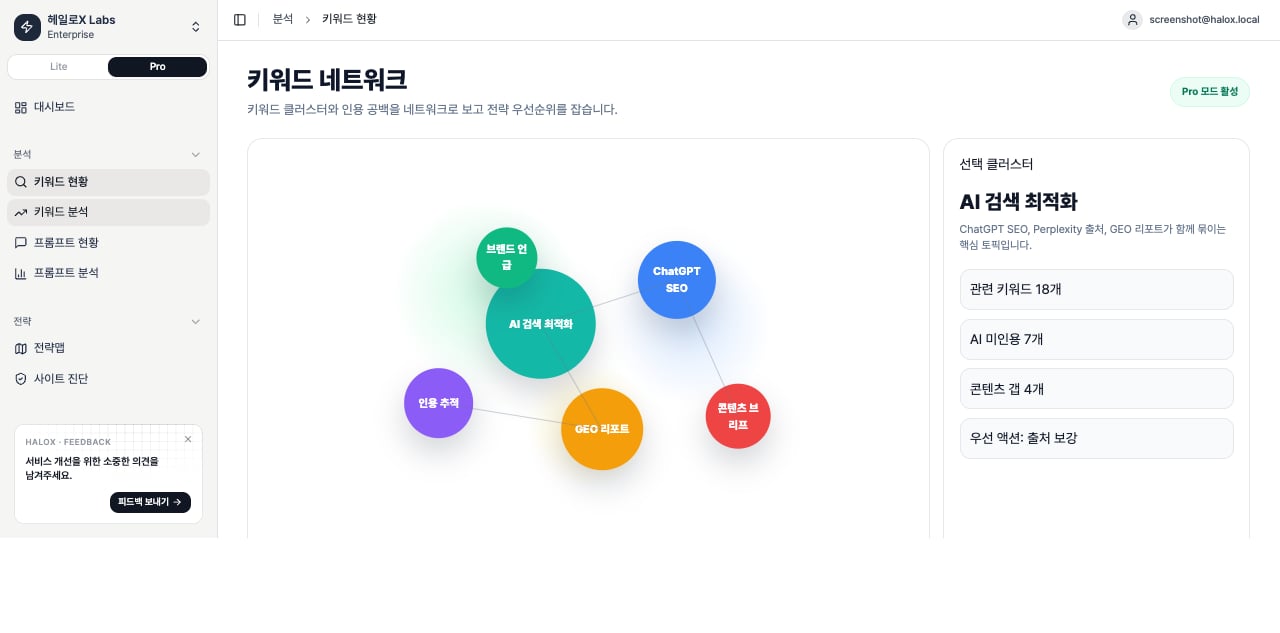 *The network tab turns individual keywords into clusters and citation-gap structures that can be handed to Strategy Map or Content Factory.*
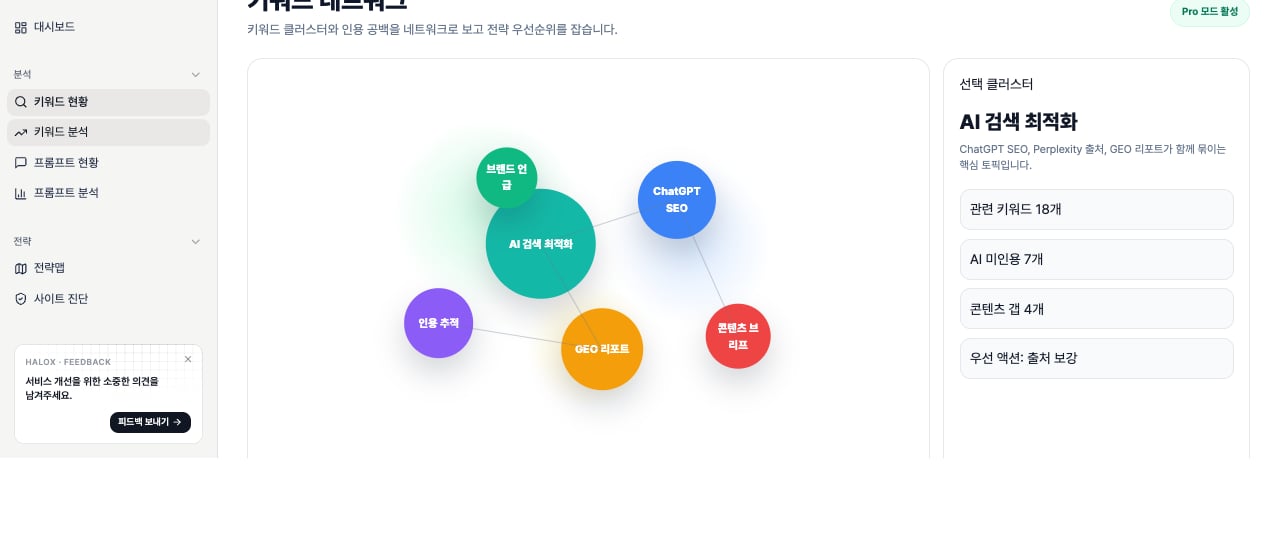 *The graph shows how keywords connect, while the side panel suggests terms that can expand the same content cluster.*
## How to use it
Do not read the score or list mechanically. Explain the cause and the next action.
Check lower cards and detail panels as well as the top of the screen.
Connect the finding to a content brief, site fix, report, or export.
## If you need the service metric definitions
Terms such as `rank`, `search volume`, `trend`, `AI`, `PAA`, `Citation Rate`, `Share of Voice`, and `gap type` are explained in the [screen metrics glossary](/en/glossary/screen-metrics). Use it when a KPI on this page needs a plain-language definition and a link back to the screen where it appears.
## Related docs
See where this feature sits in Pro mode.
Understand the workspace depth model.
Turn metrics into meeting language.
Package results into a report output.
*The graph shows how keywords connect, while the side panel suggests terms that can expand the same content cluster.*
## How to use it
Do not read the score or list mechanically. Explain the cause and the next action.
Check lower cards and detail panels as well as the top of the screen.
Connect the finding to a content brief, site fix, report, or export.
## If you need the service metric definitions
Terms such as `rank`, `search volume`, `trend`, `AI`, `PAA`, `Citation Rate`, `Share of Voice`, and `gap type` are explained in the [screen metrics glossary](/en/glossary/screen-metrics). Use it when a KPI on this page needs a plain-language definition and a link back to the screen where it appears.
## Related docs
See where this feature sits in Pro mode.
Understand the workspace depth model.
Turn metrics into meeting language.
Package results into a report output.