Documentation Index

Fetch the complete documentation index at: https://docs.haloxlabs.ai/llms.txt

Use this file to discover all available pages before exploring further.

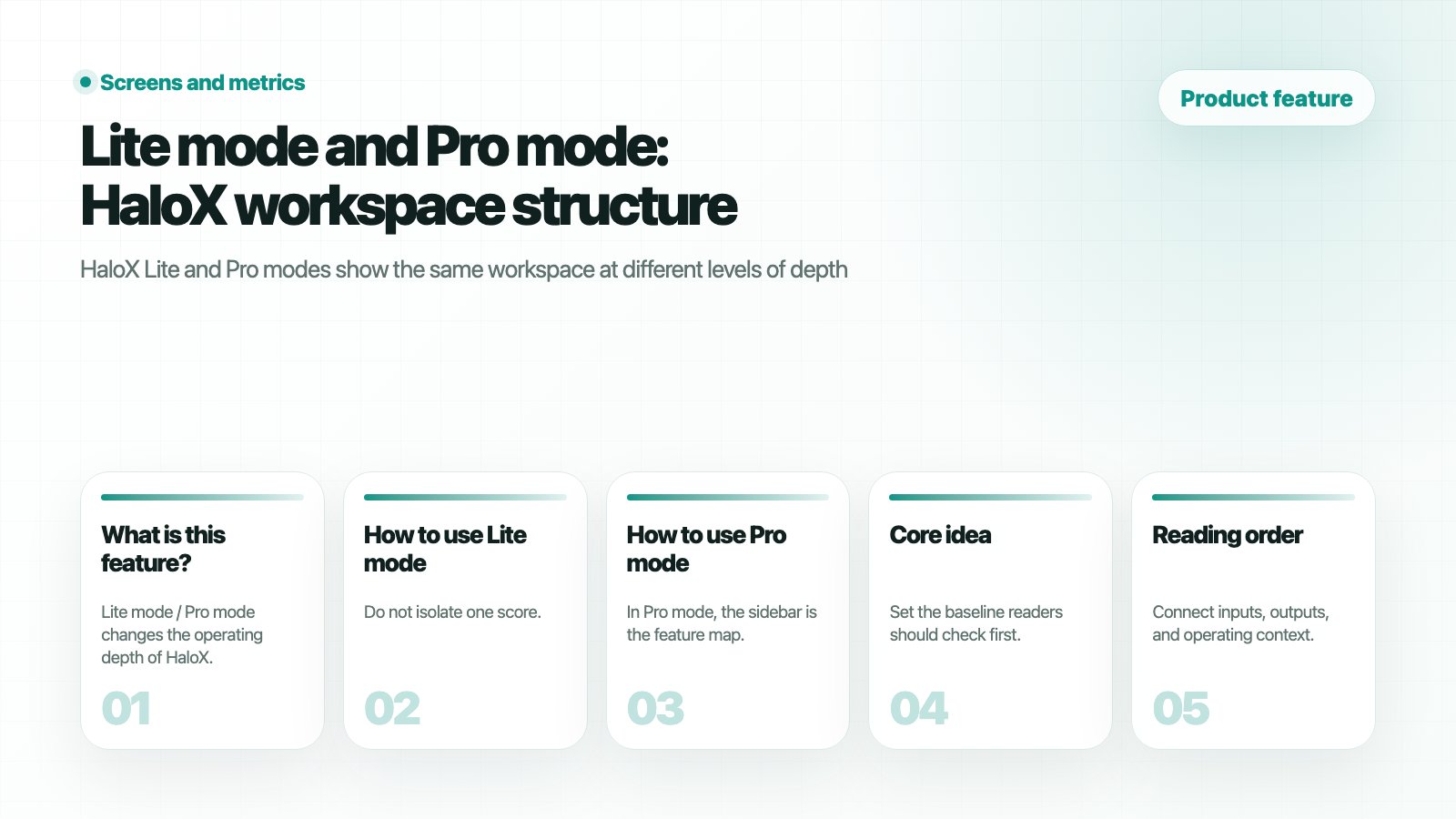
HaloX Features page thumbnail summarizing Lite mode and Pro mode: HaloX workspace structure in five cards

What is this feature?

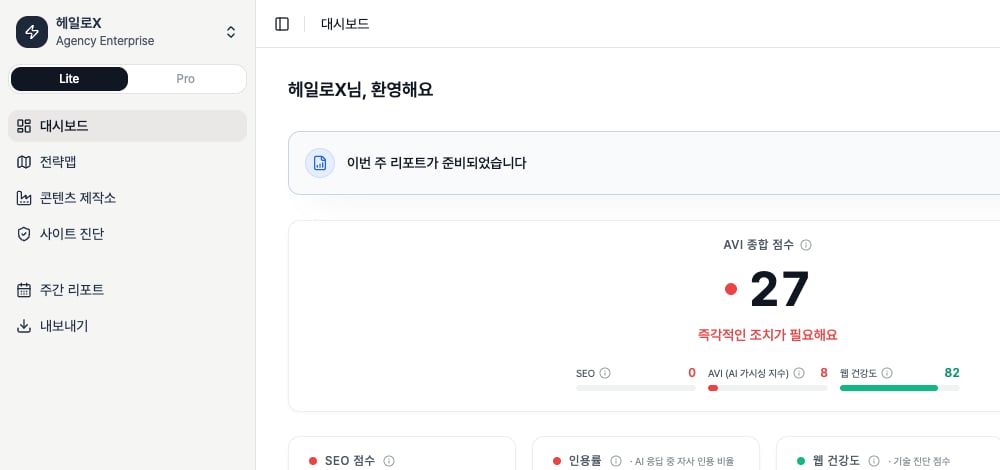
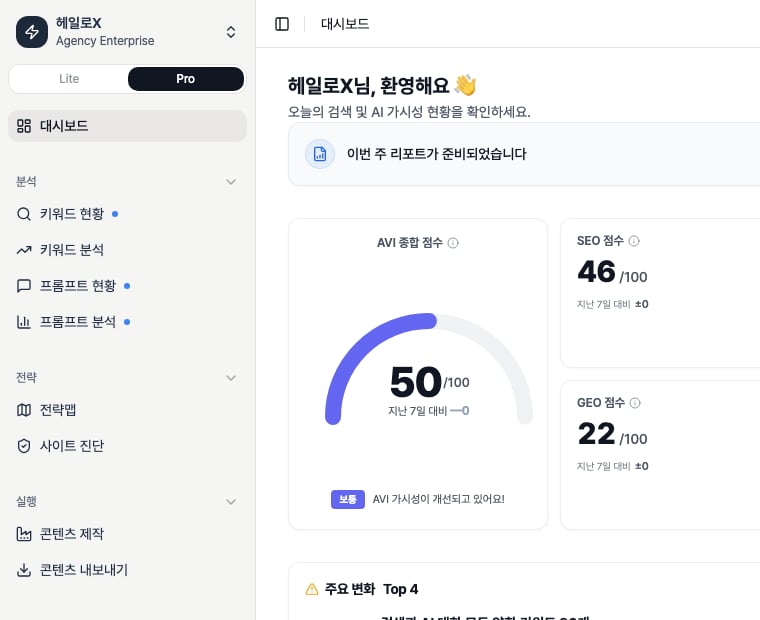
Lite mode / Pro mode changes the operating depth of HaloX. Lite mode helps teams read the core scores and next actions quickly. Pro mode opens the sidebar feature map so teams can break work down by questions, keywords, sources, site issues, content, and reports.
HaloX dashboard showing the Lite and Pro mode toggle, sidebar menu, and dashboard cards
Screenshot rule: do not document only the top of the app. Lower cards, lower sidebar areas, and tab interiors often contain the feature detail, so scrolled screenshots should be used when they explain the product better.

How Lite mode differs from Pro mode

AreaLite modePro mode
PurposeFast status reading and execution startRoot-cause analysis, ownership, and repeatable operations
DepthDashboard, Strategy Map, Content Factory, Site Audit, Weekly Report, ExportSegmented analysis, strategy, execution, monitoring, and workspace management
Best forExecutives, client meetings, new usersSEO/GEO operators, content teams, consultants, agencies
Main question“What is the problem now?”“Which question, keyword, source, page, or content item caused it?”
OutputPriority summary, one-page diagnosis, quick reportContent briefs, technical tickets, prompt sets, weekly reports, exported datasets

How to use Lite mode

1

1. Read AVI, SEO, citation rate, and web health together

Do not isolate one score. Read AI answer signals, search foundation, and technical readiness together.
2

2. Scroll to the lower cards for causes

Lower cards such as SEO score, citation rate, web health, and traffic summary often explain the next action.
3

3. Move into one next feature

Technical issues go to Site Audit, question or cluster issues go to Strategy Map, content gaps go to Content Factory, and reporting goes to Weekly Report.

How to use Pro mode

In Pro mode, the sidebar is the feature map. Each menu is a step in the analysis → strategy → execution → monitoring → management loop.
Pro areaFeaturesOperating questionNext guide
AnalysisKeyword Status, Keyword Analysis, Prompt Status, Prompt AnalysisWhere are we weak across search terms and AI questions?Reading scores, AI search rank tracking
StrategyStrategy Map, Site AuditWhich cluster or page should we fix first?First site audit, Content brief template
ExecutionContent Factory, Content ExportWhich content and deliverables should we create?Creating content, Exporting content
MonitoringMonitoring Dashboard, Weekly ReportAre the signals improving?Reports, GEO report example
ManagementPersonas, Knowledge HubWhich tone, product facts, and source context should guide output?Source trust checklist

Which mode should you start with?

SituationRecommended modeWhy
Before a client meetingLiteIt explains status and report actions quickly.
Weekly operator meetingProOperators need to assign work by keyword, prompt, site, and content.
New workspace onboardingLite → ProRead the overview first, then inspect causes in Pro.
Before content productionProStrategy, evidence, and content-writing tabs should be checked together.

FAQ

Is Pro mode always better?

No. Lite is for faster decisions. Pro is for deeper root-cause work. Use Lite in meetings and Pro in execution reviews.

Should docs include scrolled screenshots?

Yes. Many HaloX details live in lower cards, tab interiors, and detail panels. Scrolled screenshots are part of the product explanation when they clarify the workflow.

Pro sidebar feature map

Read each Pro menu as an operating feature.

Product feature map

See where each feature fits in the product loop.

Strategy Map

Use list, network, and portfolio views.

Site Audit

Use Overview, Issues, Pages, SEO, and GEO tabs.